Description
Highlights
- All-in-One Control
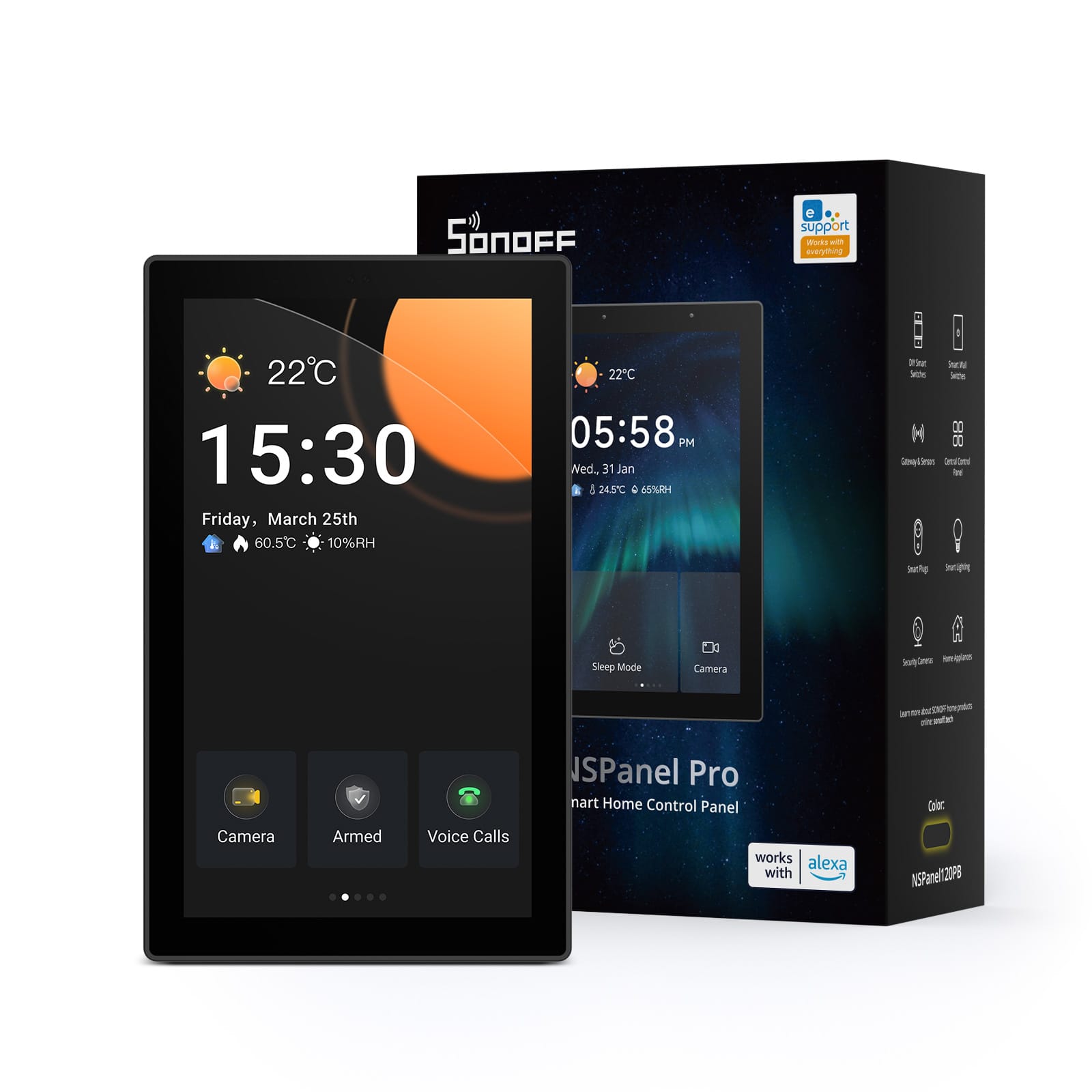
NSPanel Pro supports unlimited SONOFF devices—from smart lights and cameras to sensors and switches. Future SONOFF devices will also be compatible, ensuring long-term scalability. - Built-in Zigbee Hub
Easily batch-add Zigbee devices via the touchscreen. Built on the stable Zigbee 3.0 protocol, it ensures reliable connectivity and extensive coverage. - Smart Security
Create up to 3 custom security modes with different arming configurations. Once armed, the triggered sensor will activate an alarm on the panel and send instant alerts to your phone. - Central Heating Control
Managing the whole-house heating system to deliver constant comfort to every space—achieving the ideal living climate through a truly integrated whole-home temperature control system. - Matter Bridge Break Ecosystem Barriers
The Matter Bridge feature seamlessly integrates non-Matter devices into the Matter ecosystem, enabling voice control via Siri, Alexa, Google Home, and other third-party Matter-supported apps. - Built-in F-Droid App Library
The NSPanel Pro now supports the F-Droid app store, allowing users to explore and install third-party applications. Download Home Assistant to create a powerful smart home hub or discover other tools to unlock the full potential of the device. One-Click Synchronization of Zigbee Devices to Home Assistant
Use the dedicated “Home Assistant” entry for NSPanel Pro in the eWeLink App to batch synchronize Zigbee devices connected to NSPanel Pro into your Home Assistant.- Live Camera Monitoring
NSPanel Pro functions as a real-time display for the supported cameras. Monitor key areas like the living room, garage, or bedroom directly from the panel at any time.
Applications
- Central smart-home control: manage lights, cameras, scenes, and thermostat functions in one hub.
- Visual thermostat: display temperature/humidity, control Zigbee‑connected heating/cooling devices, and view logs.
- Security interface: set arming modes, receive sensor alerts, and view live feed.
- Scene launcher: trigger preconfigured scenes (e.g., “Away”, “Movie night”) with one tap or voice command.
- Family-friendly operation: simple UI for guests/kids to control shared smart devices.
Specification
Model | 86 Version: NSPanel86PB/NSPanel86PW 120 Version: NSPanel120PB/NSPanel120PW |
CPU | Quad-core ARM Cortex-A35 CPU |
GPU | Mali G31-2EE GPU |
Soc | NSPanel86PB/NSPanel86PW: PX30 NSPanel120PB/NSPanel120PW: RK3326-S |
Rating | 100-240V~ 50/60Hz 5W MAX,150mA MAX |
Wireless connectivity | Wi-Fi IEEE 802.11 b/g/n 2.4GHz, Zigbee 3.0 |
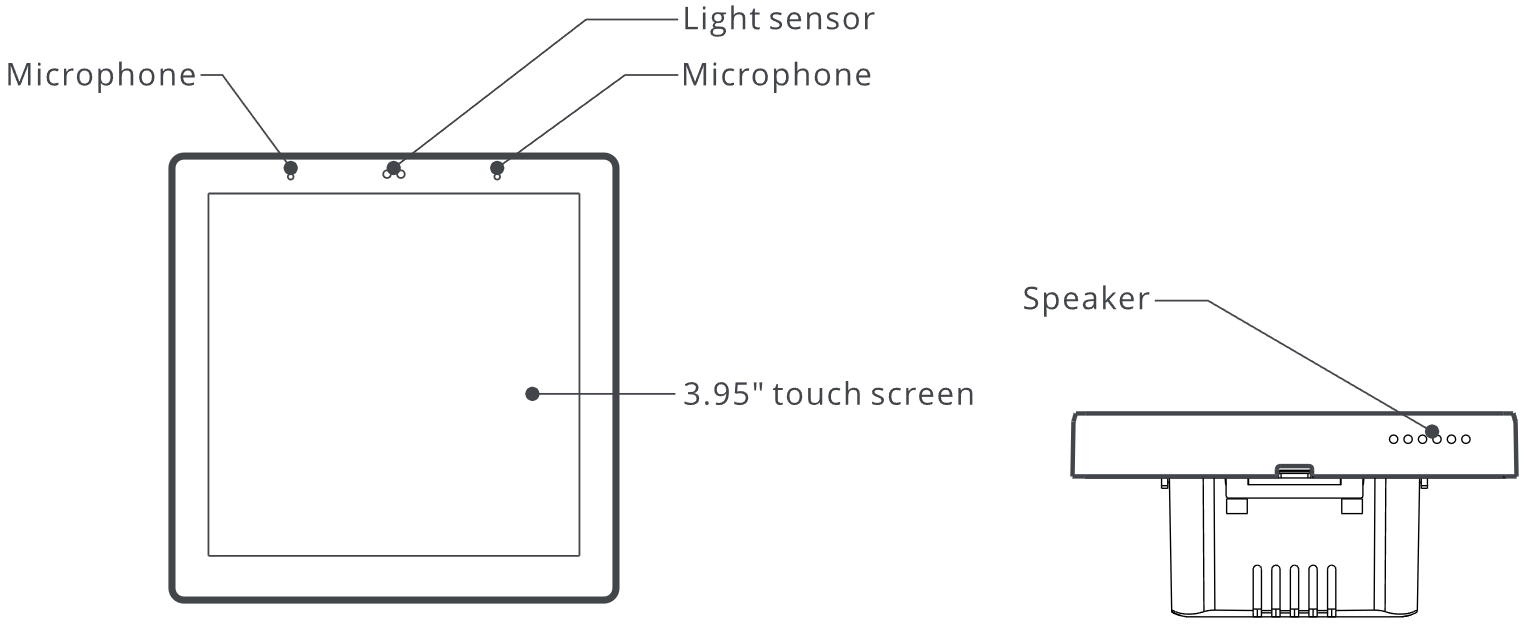
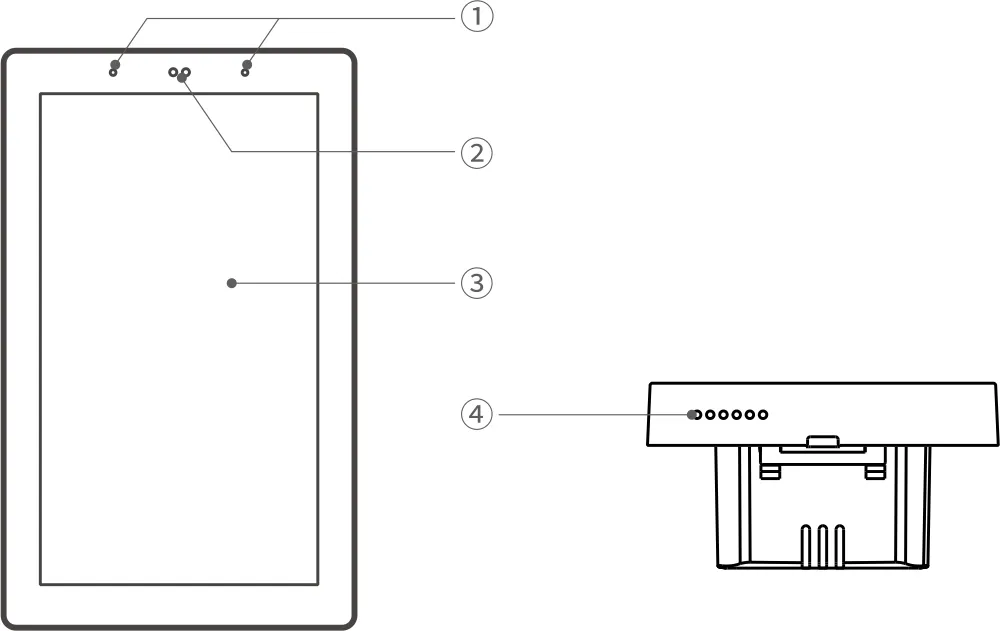
Screen size | NSPanel86PB/NSPanel86PW: 3.95″ (Capacitive touch panel) NSPanel120PB/NSPanel120PW: 4.7″ (Capacitive touch panel) |
Screen resolution | NSPanel86PB/NSPanel86PW: 480×480 NSPanel120PB/NSPanel120PW: 750×1334 |
Touch control | Support multi-touch |
Audio output | 7Ω, 1W speaker |
Microphone | Two channels digital microphones |
Light sensor | Adjust brightness according to ambient light automatically (ICC light sensor) |
Net weight | NSPanel86PB/NSPanel86PW: 180g NSPanel120PB/NSPanel120PW: 221g |
Applicable place | Indoor |
Working temperature | 0℃-40℃ |
Working humidity | 5%~90% RH, non-condensing |
Working height | Less than 2000m |
Color | NSPanel86PW/NSPanel120PW: White NSPanel86PB/NSPanel120PB: Dim Gray |
Product dimension | NSPanel86PB/NSPanel86PW: 86x86x39.5mm NSPanel120PB/NSPanel120PW: 122.5×74.5×39.5mm |
Casing materials | PC+CRS |
Certification | NSPanel86PB/NSPanel86PW: CE/KCA/SRRC/RoHS NSPanel120PB/NSPanel120PW: CE/FCC/ISED/RoHS |
Executive standard | EN 62368-1 |
eWeLink Key Features
eWeLink APP Feature
Device Home Page Functions | ||
Key Features | Feature Description | |
Matter |
View the number of Matter networks the device has been added to via card display; tap to enter the Matter Bridge settings.
| |
Voice Call | Use NSPanel Pro for voice conversations with a smartphone, a Cast tablet, or another NSPanel Pro. | |
Theme | Select screen UI styles for NSPanel Pro:
| |
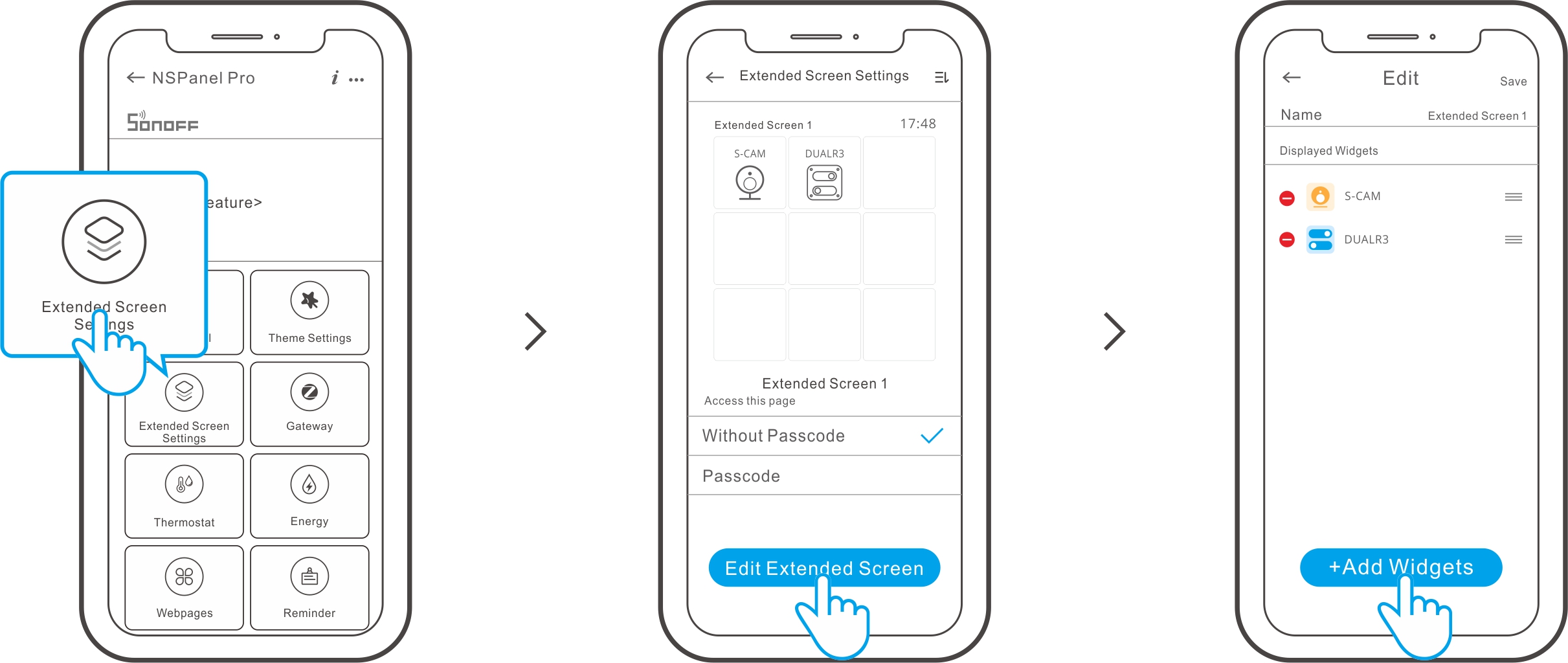
Split Screen | Add, remove, or edit Screens. Includes the following screen types:
| |
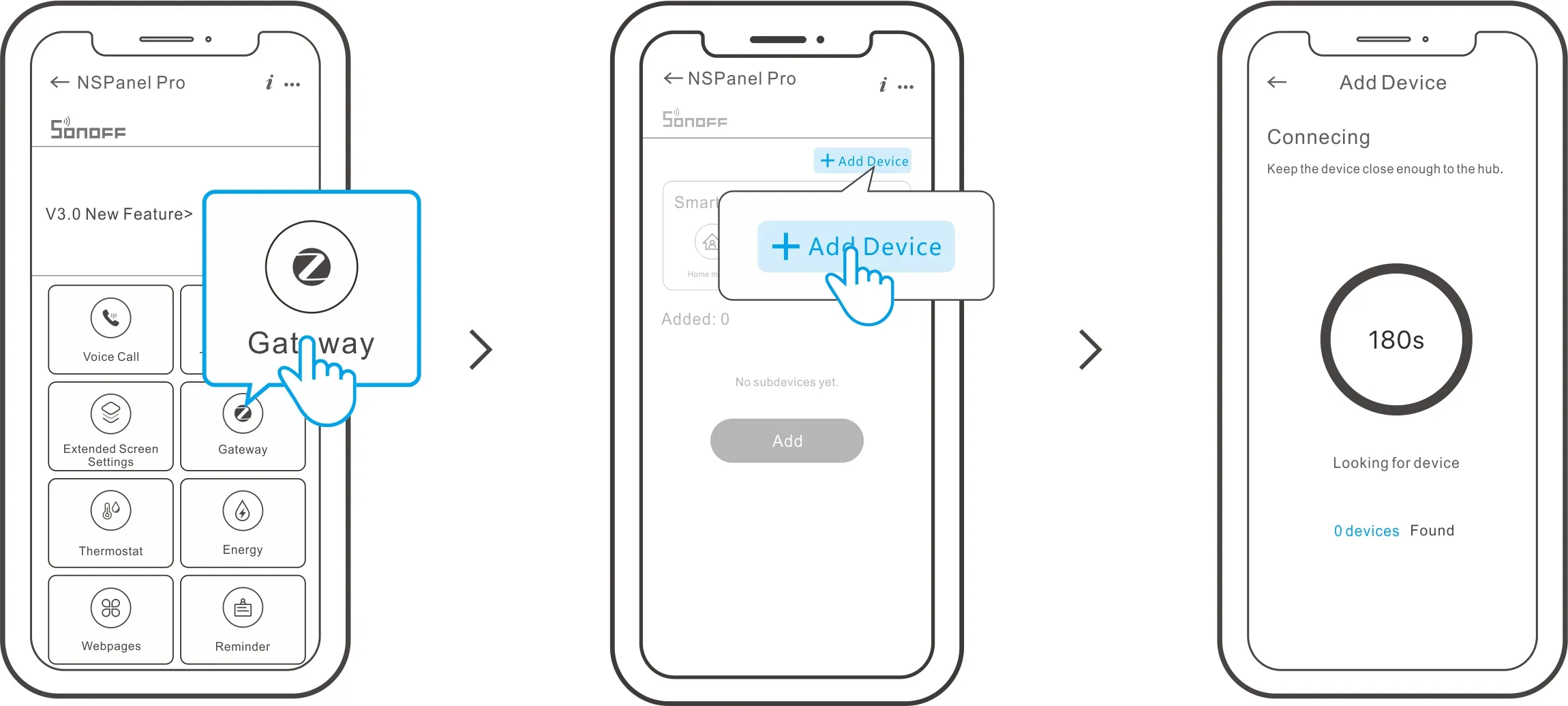
Gateway | Add Zigbee sub-devices and configure Smart Security modes within this screen. | |
Thermostat | By adding external temperature sources and execution devices, you can build up to 10 thermostat screens and maintain the temperature within a set range through heating/cooling.
| |
Energy | Select devices with energy statistics functions to track their daily energy consumption over a week. | |
Webpages | Add quick access links in the APP, which will allow you to jump directly to the corresponding webpages from the quick access page on NSPanel Pro. | |
Reminder | Enter text in the “Reminder” in the eWeLink APP and your message will be received on the NSPanel Pro screen. | |
Device Settings | ||
Key Features | Feature Description | |
Third-party Platforms | Alexa | You can query the Smart Security mode or status of NSPanel Pro. |
Google Home | ||
IFTTT | ||
Guest mode | Restrict the NSPanel Pro to control only and prevent any configuration change. | |
Assign location | Set up the home and room where the device is located. | |
Smart Scene | Trigger Condition |
|
Execution Action | Security Mode:
Alarm Beeps:
Screen Status:
| |
LAN Control | A control method where the app communicates directly with the device over the same router, without going through the cloud platform.
| |
Home Assistant
|
Export Zigbee devices to Home Assistant via MQTT Discovery protocol.
| |
Matter Bridge
|
You can enable the Matter pairing code to add NSPanel Pro as a bridge to third-party Matter applications. Manage added Matter networks and the synchronization of non-Matter sub-devices, then freely select which sub-devices to expose to these applications.
| |
BT Home
| Support adding BTHome devices and syncing them to the Matter platform for control. | |
eWeLink-Remote Sub-devices | If you have also purchased the SONOFF R5, you can add it as a “sub-device” to the NSPanel. By using the “Scene Function” in the eWeLink app, the two devices can be linked, allowing the Sonoff R5 to function as a convenient wireless remote controller. | |
Temp. & Humi. Feeds | Display the Temp. & Humi. by supported external device. The external device list comes from other devices that support temperature and humidity detection under the eWeLink account | |
Temperature unit | Switch the temperature unit display:
| |
Smart Security | Home mode | Customize 3 modes by setting different arming devices. After arming, once the sensor is triggered, the panel will alarm, and you will receive a notification alert on the phone.
|
Away mode | ||
Sleep mode | ||
Security Logs | Records of security mode data. | |
Security Code | After enable, you need to enter a password to cancel the alarm or reset the device.
| |
Call Records | Records of the Voice Call of NSPanel Pro. | |
Pilot Feature | Turbo mode: Enhance Zigbee signal
Zigbee Mode: Switch NSPanel Pro Zigbee mode
| |
Wallpaper | Choose preset wallpapers in NSPanel Pro, or upload your images through the eWeLink APP within the local network to use as custom wallpapers. | |
Ringtone | Upload an audio clip as a ringtone for NSPanel Pro | |
Turn On Pairing Mode
|
Enable the Matter pairing code to sync NSPanel Pro to third-party Matter applications by scanning the QR code or entering the code.
| |
Reboot | Make the device reboot. | |
Delete Device | Remove the device from the eWeLink platform. | |
On-Screen Capabilities
| Notice: The following features require the NSPanel Pro to be added to the eWeLink app before use. Some features must be configured within the eWeLink app. |
On-Screen Feature | |
Key Features | Feature Description |
Home Screen | Displays current time, weather, and date information. |
Feature Screen | Displays different functional screens based on the order set in eWeLink APP — Split Screen. |
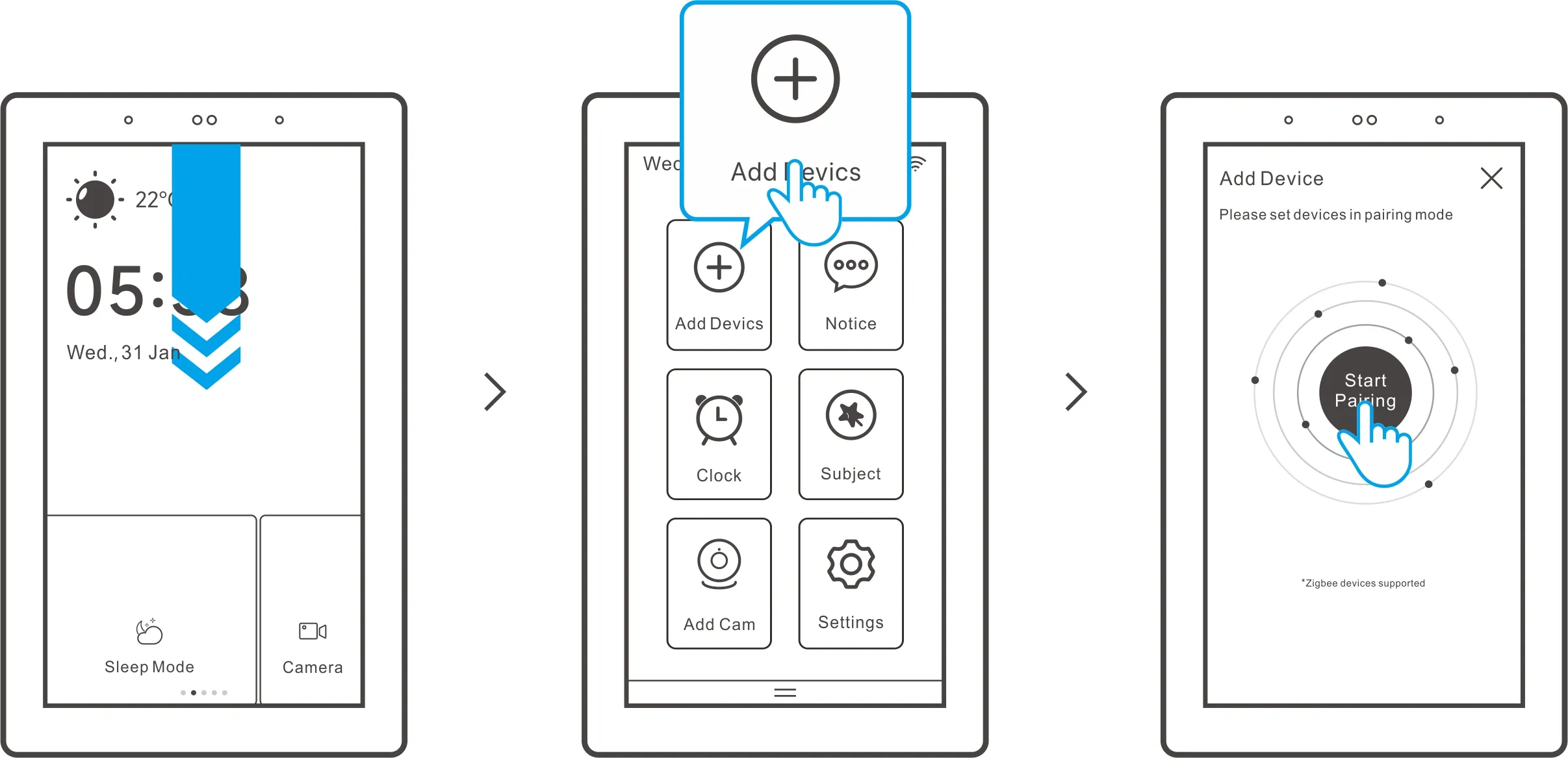
Add Device | After entering pairing mode, Zigbee devices or eWeLink-Remote sub-devices can be added within 180 seconds. Successfully added devices will appear directly in the device list. |
Notice | View historical alert records related to the device. |
Alarm | Set alarms or timers. |
Theme | Change wallpaper. You can select from default wallpapers or upload custom wallpapers via the eWeLink APP. |
Cameras | Add RTSP cameras and DIY cameras. Successfully added devices will appear directly in the device list. |
Web Shortcut | Automatically discovers Home Assistant or eWeLink Cube on the same LAN. Once added, you can access and control them from the screen. |
Matter Bridge
|
You can enable the Matter pairing code to connect NSPanel Pro as a bridge to third-party Matter applications, while monitoring the real-time sync status of non-Matter devices.
|
F-Dorid
|
Leverage the built-in Android OS and free, open-source F-Droid app store to discover and install various third-party apps, unlocking diverse new possibilities for your NSPanel Pro.
|
Apps
|
Support any installed app as your Home App while maintaining core functions like NSPanel Pro control in the background, allowing Smart Scenes & Smart Security features to trigger and execute normally.
|
On-Screen Settings | |
Settings | Settings Description |
Wireless network | Scan for 2.4G Wi-Fi networks in the environment and add a network. |
Bluetooth | Connect to a Bluetooth speaker for external audio playback.
|
eWeLink Account | View the currently linked eWeLink account information or learn more about the system. |
Thermostats | Set up a central heating system to keep every room at a constant temperature.
|
Set Time Zone | Adjust time settings, including:
|
Weather | After selecting a city, view local weather information on the home screen. |
Display | Modify display-related settings:
|
Language | Change the system language on the screen |
Volume | Adjust the system volume on the screen |
Advanced Setting
|
It features system-level Android settings, including battery management, system-level screensaver, and app cache clearance.
|
About | View system information about the device, including:
|
Installation and Configuration Guide
86 Version (NSPanel86PB/NSPanel86PW):
120 Version (NSPanel120PB/NSPanel120PW):
Wiring Diagrams
Notice: NSPanel Pro does not support direct load control. |
NSPanel86PB/NSPanel86PW |
NSPanel120PB/NSPanel120PW |
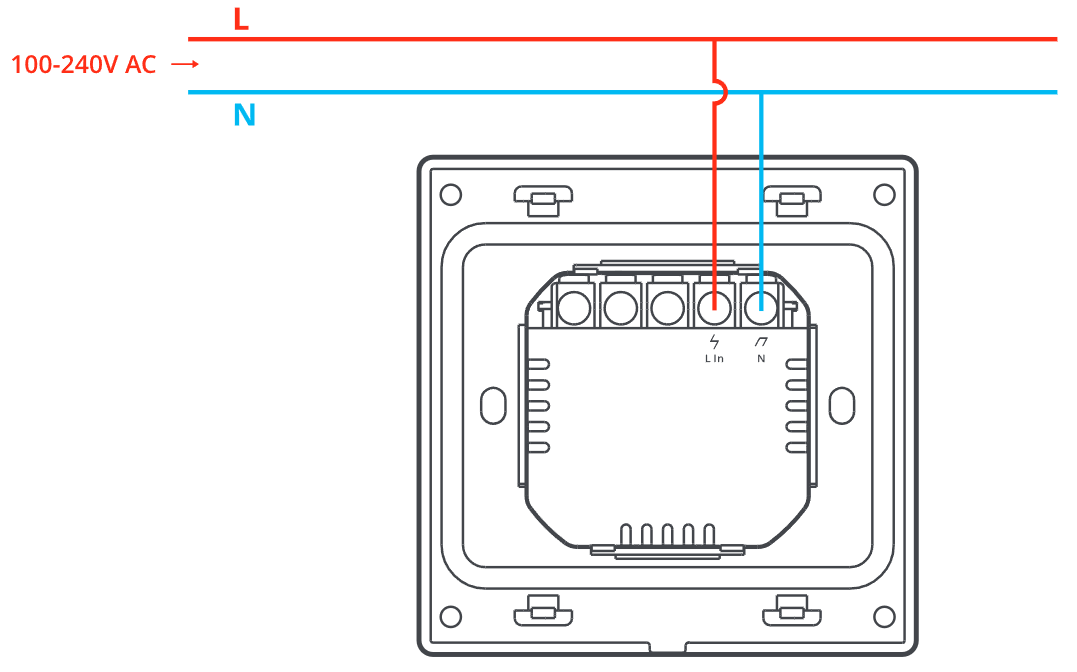
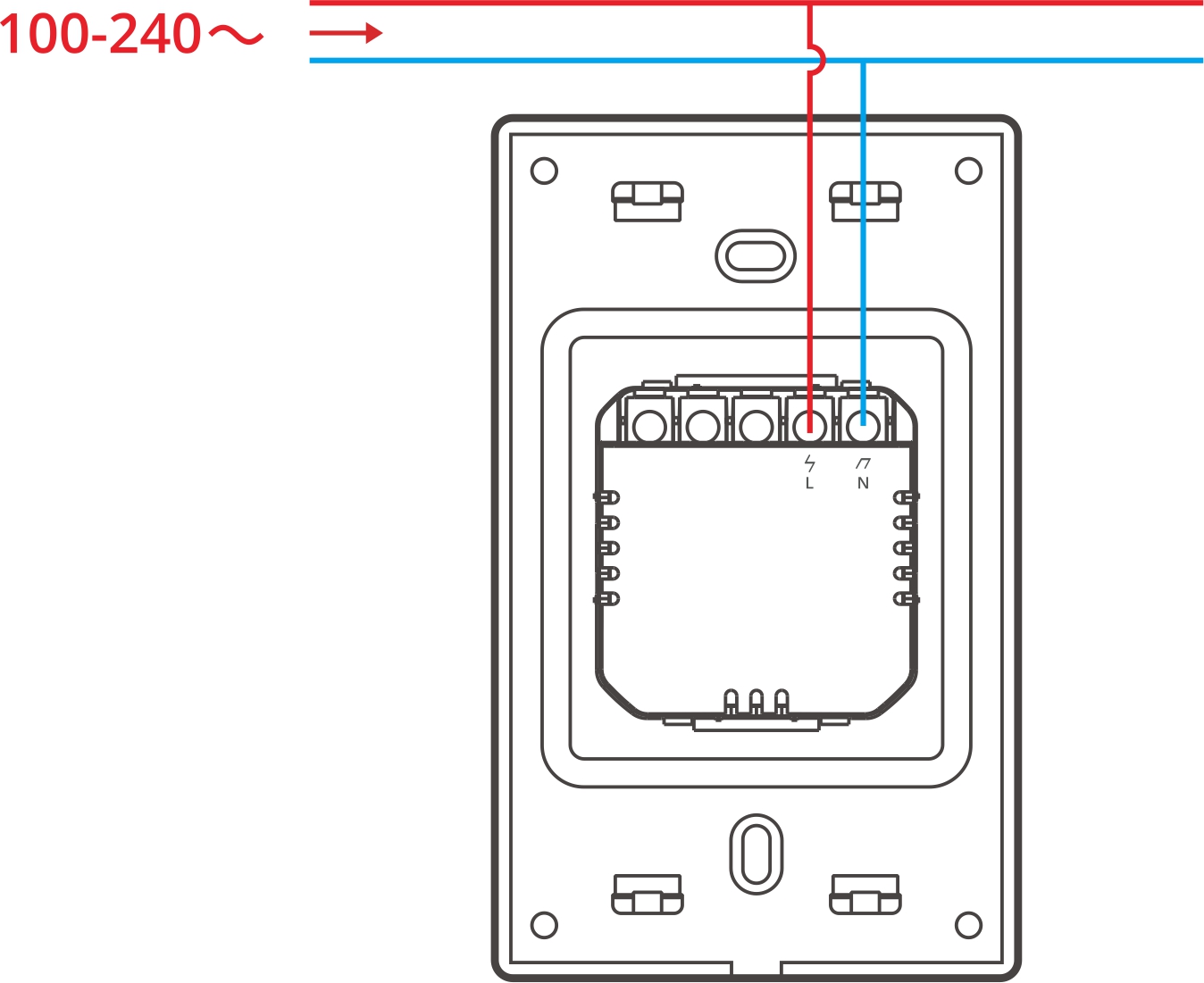
Terminals | | Wires | |
N | Neutral Line | N | Neutral Line |
L In | Live Line | L | Live Line(100~240V) |
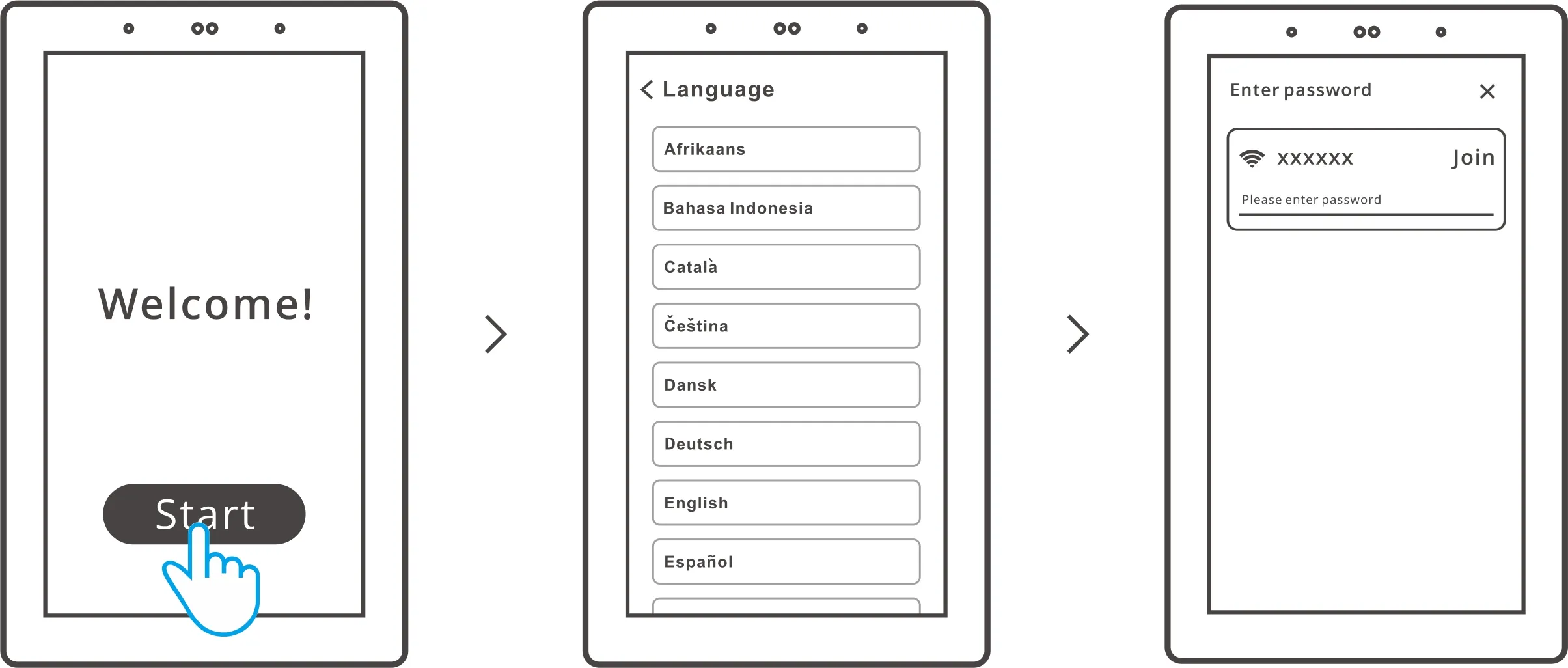
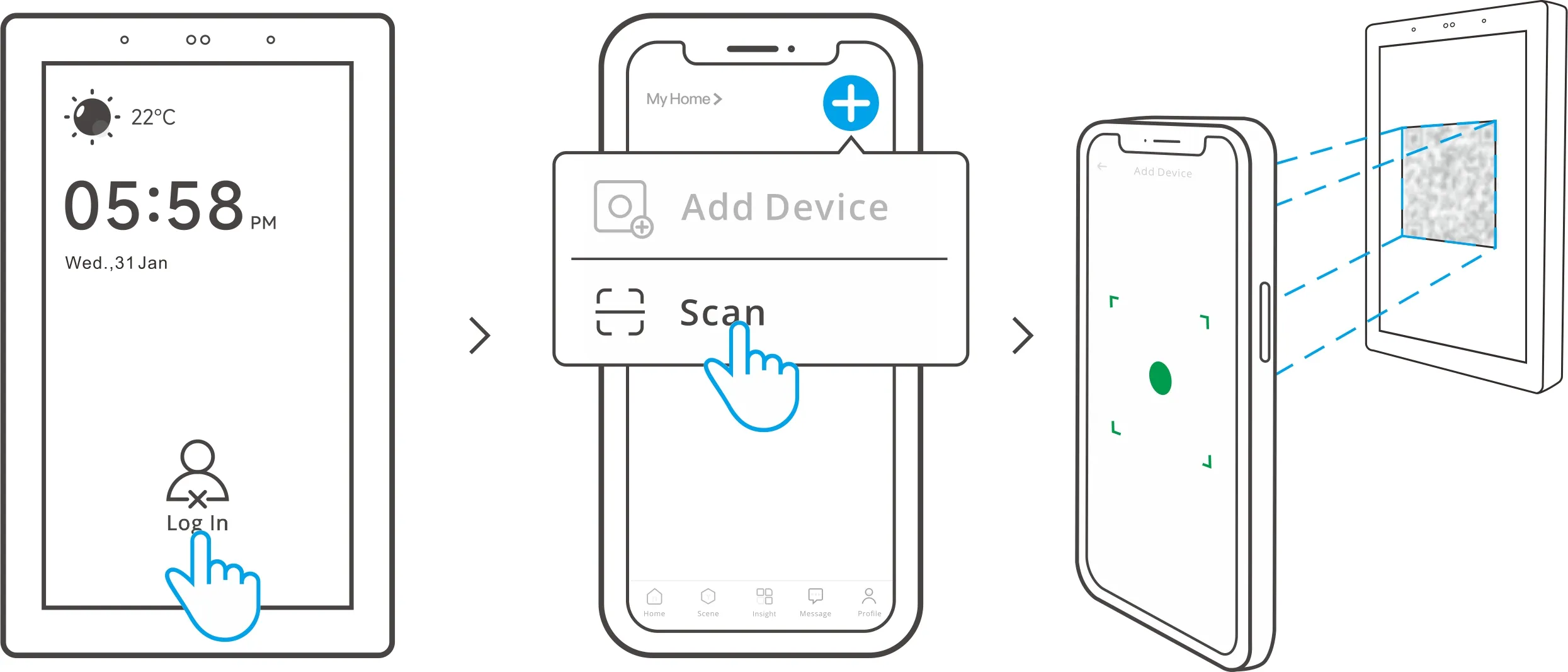
Add Device to eWeLink APP
Notice: Adding to the eWeLink APP process is the same for both the NSPanel Pro 86 and 120 versions. The following example uses the 120 version. |
|
|
|
|
Add Zigbee Device to NSPanel Pro
Notice: Adding to the eWeLink APP process is the same for both the NSPanel Pro 86 and 120 versions. The following example uses the 120 version. |
|
|
Method 1 | Method 2 |
Entry on the central control panel. Then Set the Zigbee device into the pairing mode and complete the adding by following the prompts. | Entry on the eWeLink App. Then Set the Zigbee device into the pairing mode and complete the adding by following the prompts. |
Add Wi-Fi Device to NSPanel Pro
Notice: Adding Wi-Fi device process is the same for both the NSPanel Pro 86 and 120 versions. The following example uses the 120 version. |
|
|
|
Expandable Feature
To enhance the functionality of NSPanel Pro, we provide a variety of additional expandable features that allow it to better serve as a central control panel.
Feature Name | Introduction | Tutorial |
Web Shortcut | Allow to search for services within the local network and display them on the screen of the NSPanel Pro, enabling you to view them at any time. | |
Matter Hub | Use NSPanel Pro as a Matter hub on the eWeLink platform to add and control Matter devices from other brands. | https://sonoff.tech/product-review/tutorial/how-to-add-and-control-matter-device-by-nspanel-pro/ |
Node-RED | Integrate NSPanel Pro and its added Zigbee devices into Node-RED to create more complex smart scenes. | |
Paral-Sync Add-on | Locally sync Zigbee devices from NSPanel Pro to iHost. | |
Advanced Setting
|
NSPanel Pro now supports F-Droid, allowing you to download official application packages such as Home Assistant.
|
|